
Move to Big Cat
You love your website. Not the bill. Keep the look, bring your own words and photos, from €10 a month.
Website Cat: €12 a month, or €60 every 6 months (€10 a month). Free for 7 days, no card needed.
Four steps, in this order
- 1
Save
Download your words and photos from your old platform.
- 2
Rebuild
Paste your current site’s link into Big Cat. The cat rebuilds the look you love, with your words and photos.
- 3
Connect your domain
Point yourname.com to Big Cat. Your domain stays yours.
- 4
Cancel the old plan
Last. Only once your Big Cat site opens on your domain.
Never cancel before your domain works on Big Cat. And keep your domain: you cancel the website plan, not the domain.
As safe as the big guys
Straight facts. The full list, gaps included, is on our Security page.
- Your data lives in the EU: our database is in Frankfurt.
- Your published site and our backups stay in the EU. Backups run every day, encrypted with our own key.
- HTTPS everywhere: on bigcat.website and on every published site.
- Payments go through Stripe. We never see your card.
- Your words and photos never train AI.
What you’ll see in Big Cat
Big Cat’s real screens, in the order you meet them.
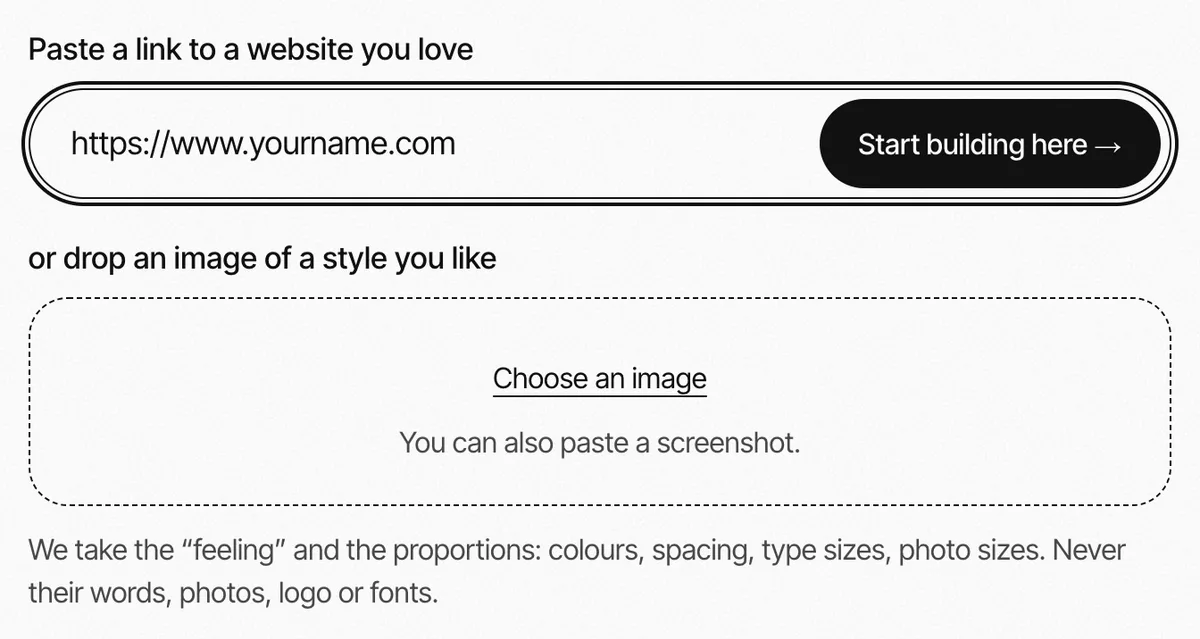
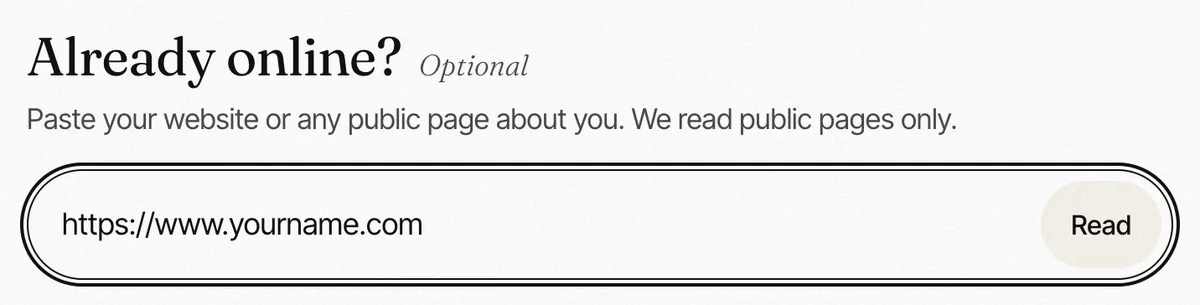
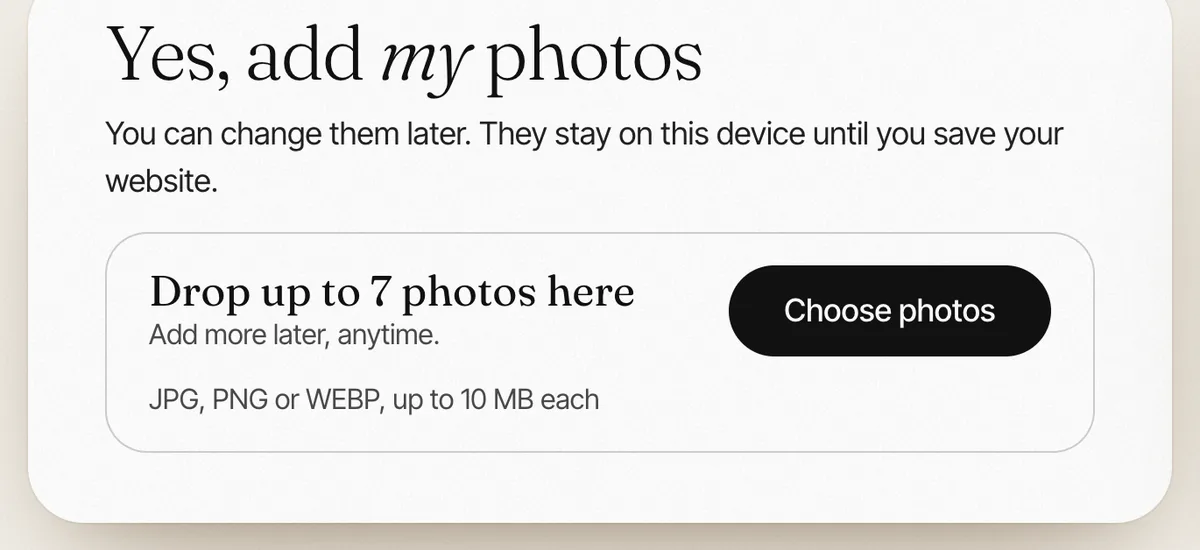
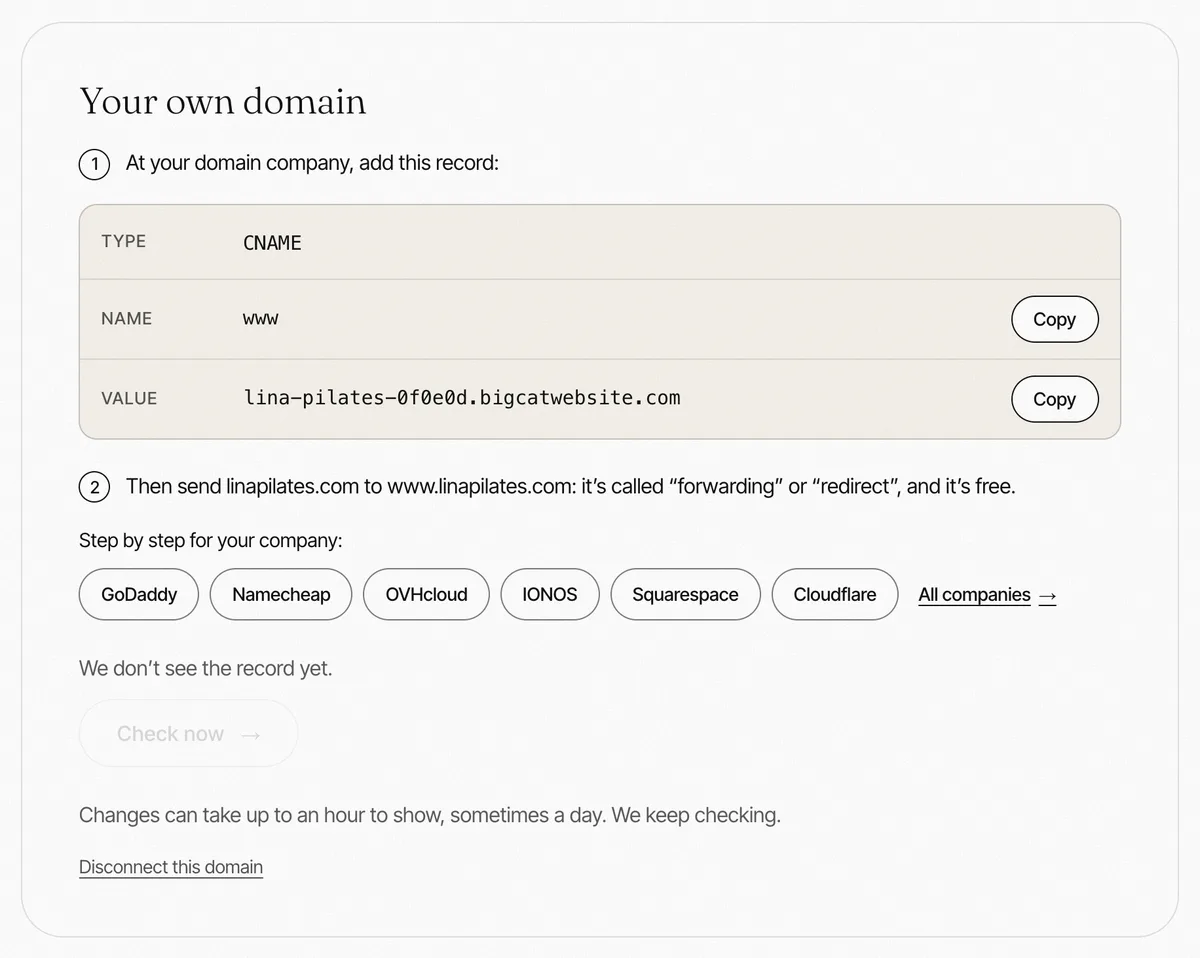
Honest about what comes across: the look comes close, not as a pixel copy (proportions, type sizes, colours; fonts become close free matches). Your words: Big Cat reads one page and writes your new page from it, in your tone. Put your favourite sentences back in step 01.
Wix
Wix has no full-site export, so you save your words and photos yourself.
1 Save your words and photos
- Open each page of your live site and copy its words into a document.
- In your Wix dashboard, open the Media Manager. Hold Cmd (Mac) or Ctrl (Windows), click your photos, then click Download. One folder at a time.
- Only files you uploaded can be downloaded: Wix’s free and Shutterstock photos can’t.
- Have a shop? Store Products → Export: your product list as a CSV file, for your records.
2 Rebuild it in Big Cat
- On bigcat.website, paste your current site’s address (yourname.com) in “Paste a link to a website you love” and press “Start building here”. Big Cat reads its look.
- Next, at “Already online?”, paste the same address and press “Read”. Big Cat reads that page’s words.
- Choose “Yes, add my photos” and add the photos you saved: 7 now, more later.
- Press “Show my website”. Then, in step 01 “Edit your words”, put your favourite sentences back.
- More pages? Press “+ Add page” above your website: up to 10 pages with Website Cat.
- Ready? Step 04 “Publish” puts your site online, with its legal page.
If Big Cat can’t open your page, take a screenshot of it and drop it in the same box instead.
3 Your domain
Bought your domain at Wix? Two ways. Bought it elsewhere? Choose your company on our domain page.
Keep it there and point it to Big Cat
Or move it to another domain company
- In Wix, open Domains. Your domain must be unlocked.
- Click ⋯ next to it → Transfer away from Wix. Wix emails the transfer code (EPP code) to the domain’s contact address.
- Give that code to your new domain company. It can take up to 7 days.
- A domain bought or transferred in the last 60 days can’t move yet (ICANN’s rule): point it instead.
Their official guide (support.wix.com): ↗
4 Cancel the old plan, last
- In your Wix account, open Premium Subscriptions.
- Click ⋯ next to the site’s plan → Cancel Plan, and confirm.
- This cancels the site plan only: your domain is a separate subscription. Keep it (or move it first).
Their official guide (support.wix.com): ↗
What doesn’t come across
- Wix can’t export blog posts to another platform. Their official guide ↗
- Blog posts: a blog isn’t in Big Cat yet. Give your best articles their own page (up to 10 pages).
- A shop: your page can show up to 8 products, each with a Buy button to your Stripe, PayPal or Shopify link. A full shop with a cart comes with Business Cat, coming soon.
- Forms are coming soon. Until then, your page can collect emails and open the form or booking link you already use.
- Member areas and paid subscriptions come with Membership Cat, coming soon.
- One language per site: a language switch isn’t in Big Cat yet.
- Old page links (like yourname.com/blog/my-post) don’t carry over.
Squarespace
Squarespace exports your pages’ words in one file. Photos you save one by one.
1 Save your words and photos
- Your site must be published and public: a trial site can’t export.
- In the Import & export content panel, click Export, then the WordPress icon. Download the .xml file: your pages’ words, one blog and its posts.
- Photos: there’s no download-all. In the Assets panel, hover a photo → ⋯ → File details, then right-click the preview and save it. Your own originals on your computer are even better.
2 Rebuild it in Big Cat
- On bigcat.website, paste your current site’s address (yourname.com) in “Paste a link to a website you love” and press “Start building here”. Big Cat reads its look.
- Next, at “Already online?”, paste the same address and press “Read”. Big Cat reads that page’s words.
- Choose “Yes, add my photos” and add the photos you saved: 7 now, more later.
- Press “Show my website”. Then, in step 01 “Edit your words”, put your favourite sentences back.
- More pages? Press “+ Add page” above your website: up to 10 pages with Website Cat.
- Ready? Step 04 “Publish” puts your site online, with its legal page.
If Big Cat can’t open your page, take a screenshot of it and drop it in the same box instead.
3 Your domain
Bought your domain at Squarespace (or Google Domains)? Two ways. Bought it elsewhere? Choose your company on our domain page.
Keep it there and point it to Big Cat
Or move it to another domain company
- In your Domains dashboard, open your domain and switch Domain Lock off.
- Click Request transfer code. Squarespace emails it to the domain’s contact address, within 24 hours.
- Give the newest code to your new domain company. Once sent, the transfer can’t be cancelled.
Their official guide (support.squarespace.com): ↗
4 Cancel the old plan, last
- Open the site’s Billing panel → Subscriptions → your website plan.
- Click Cancel subscription and follow the prompts.
- Your domain is billed separately: keep it.
Their official guide (support.squarespace.com): ↗
What doesn’t come across
- Squarespace exports one blog only, and parts that run on its own code don’t export. Their official guide ↗
- Blog posts: a blog isn’t in Big Cat yet. Give your best articles their own page (up to 10 pages).
- A shop: your page can show up to 8 products, each with a Buy button to your Stripe, PayPal or Shopify link. A full shop with a cart comes with Business Cat, coming soon.
- Forms are coming soon. Until then, your page can collect emails and open the form or booking link you already use.
- Member areas and paid subscriptions come with Membership Cat, coming soon.
- One language per site: a language switch isn’t in Big Cat yet.
- Old page links (like yourname.com/blog/my-post) don’t carry over.
Webflow
Webflow can export your whole site as a ZIP, on a paid Workspace plan.
1 Save your words and photos
- On a paid Workspace plan: open your site, press Shift + E (or Main menu → Code export) → Prepare ZIP → download. Your pages and images are inside.
- Blog posts and other CMS items aren’t in that ZIP: CMS panel → your Collection → Export, as a CSV file.
- No Workspace plan? Copy the words from your live pages. Photos: Assets panel → hover a file → more options → Open Link, then save it.
2 Rebuild it in Big Cat
- On bigcat.website, paste your current site’s address (yourname.com) in “Paste a link to a website you love” and press “Start building here”. Big Cat reads its look.
- Next, at “Already online?”, paste the same address and press “Read”. Big Cat reads that page’s words.
- Choose “Yes, add my photos” and add the photos you saved: 7 now, more later.
- Press “Show my website”. Then, in step 01 “Edit your words”, put your favourite sentences back.
- More pages? Press “+ Add page” above your website: up to 10 pages with Website Cat.
- Ready? Step 04 “Publish” puts your site online, with its legal page.
If Big Cat can’t open your page, take a screenshot of it and drop it in the same box instead.
3 Your domain
Webflow doesn’t sell domains itself: one bought through Webflow is held at IONOS. Sign in at IONOS, then follow the IONOS steps. Bought it elsewhere? Choose your company on our domain page. Their official guide ↗
Keep it there and point it to Big Cat
Or move it to another domain company
- At IONOS, unlock your domain first.
- Domains → Renewal & Transfer → your domain → Show Authorization Code.
- Give that code to your new domain company.
Their official guide (ionos.com): ↗
What doesn’t come across
- Webflow’s code export leaves out CMS items, forms, user accounts and shop data. Their official guide ↗
- Blog posts: a blog isn’t in Big Cat yet. Give your best articles their own page (up to 10 pages).
- A shop: your page can show up to 8 products, each with a Buy button to your Stripe, PayPal or Shopify link. A full shop with a cart comes with Business Cat, coming soon.
- Forms are coming soon. Until then, your page can collect emails and open the form or booking link you already use.
- Member areas and paid subscriptions come with Membership Cat, coming soon.
- One language per site: a language switch isn’t in Big Cat yet.
- Old page links (like yourname.com/blog/my-post) don’t carry over.
WordPress
WordPress exports your pages and posts in one file, and your media in another.
WordPress.com
1 Save your words and photos
- In your dashboard: Tools → Export → All content → Download Export File. Your pages and posts.
- Tools → Export Media Files → Download: all your media in one archive, by year and month.
2 Rebuild it in Big Cat
- On bigcat.website, paste your current site’s address (yourname.com) in “Paste a link to a website you love” and press “Start building here”. Big Cat reads its look.
- Next, at “Already online?”, paste the same address and press “Read”. Big Cat reads that page’s words.
- Choose “Yes, add my photos” and add the photos you saved: 7 now, more later.
- Press “Show my website”. Then, in step 01 “Edit your words”, put your favourite sentences back.
- More pages? Press “+ Add page” above your website: up to 10 pages with Website Cat.
- Ready? Step 04 “Publish” puts your site online, with its legal page.
If Big Cat can’t open your page, take a screenshot of it and drop it in the same box instead.
3 Your domain
Bought your domain at WordPress.com? Two ways. Bought it elsewhere? Choose your company on our domain page.
Keep it there and point it to Big Cat
- Domains → your domain → DNS records. Delete the “www” record, then Add record → CNAME · Name: www · Alias of: your Big Cat address.
- If yourname.com is your site’s main address, WordPress.com asks you to change that first.
- Your domain → Domain forwarding → forward yourname.com to https://www.yourname.com, Permanent (301) in the advanced settings.
Their official guide (wordpress.com): 1 ↗ · 2 ↗
Or move it to another domain company
- Upgrades → Domains → your domain → Transfer → get the authorization code. WordPress.com emails it to the domain’s contact address.
- Give that code to your new domain company. It takes 5 to 7 days.
- A domain registered or transferred in the last 60 days can’t move yet.
Their official guide (wordpress.com): ↗
4 Cancel the old plan, last
- Billing → Active upgrades → your plan → Cancel. It stays active until it ends.
- Your domain is a separate purchase: keep it.
Their official guide (wordpress.com): ↗
Your own WordPress (self-hosted)
1 Save your words and photos
- In your WordPress admin: Tools → Export → All content → Download Export File. Your pages and posts.
- Your photos are in the wp-content/uploads folder on your host: download it with your host’s file manager or FTP.
Their official guide (wordpress.org, developer.wordpress.org): 1 ↗ · 2 ↗
2 Rebuild it in Big Cat
- On bigcat.website, paste your current site’s address (yourname.com) in “Paste a link to a website you love” and press “Start building here”. Big Cat reads its look.
- Next, at “Already online?”, paste the same address and press “Read”. Big Cat reads that page’s words.
- Choose “Yes, add my photos” and add the photos you saved: 7 now, more later.
- Press “Show my website”. Then, in step 01 “Edit your words”, put your favourite sentences back.
- More pages? Press “+ Add page” above your website: up to 10 pages with Website Cat.
- Ready? Step 04 “Publish” puts your site online, with its legal page.
If Big Cat can’t open your page, take a screenshot of it and drop it in the same box instead.
3 Your domain
Your domain is at a domain company (often your hosting company). Choose it on our domain page.
4 Cancel the old plan, last
- At your hosting company, cancel the hosting once your Big Cat site opens on your domain.
- If your domain came with the hosting, keep it (or move it first).
What doesn’t come across
- Plugins, themes and settings stay behind: only your content and media come with you. Their official guide ↗
- Blog posts: a blog isn’t in Big Cat yet. Give your best articles their own page (up to 10 pages).
- A shop: your page can show up to 8 products, each with a Buy button to your Stripe, PayPal or Shopify link. A full shop with a cart comes with Business Cat, coming soon.
- Forms are coming soon. Until then, your page can collect emails and open the form or booking link you already use.
- Member areas and paid subscriptions come with Membership Cat, coming soon.
- One language per site: a language switch isn’t in Big Cat yet.
- Old page links (like yourname.com/blog/my-post) don’t carry over.
Showit
Showit designs can’t be exported, so you save your words and photos yourself.
1 Save your words and photos
- Open each page of your live site and copy its words into a document.
- Photos: use your own originals. For your blog’s photos, ask Showit support for a zip of your WordPress media.
- Your blog: in its WordPress admin, Tools → Export → the .xml file (it holds the words, not the photos).
2 Rebuild it in Big Cat
- On bigcat.website, paste your current site’s address (yourname.com) in “Paste a link to a website you love” and press “Start building here”. Big Cat reads its look.
- Next, at “Already online?”, paste the same address and press “Read”. Big Cat reads that page’s words.
- Choose “Yes, add my photos” and add the photos you saved: 7 now, more later.
- Press “Show my website”. Then, in step 01 “Edit your words”, put your favourite sentences back.
- More pages? Press “+ Add page” above your website: up to 10 pages with Website Cat.
- Ready? Step 04 “Publish” puts your site online, with its legal page.
If Big Cat can’t open your page, take a screenshot of it and drop it in the same box instead.
3 Your domain
Showit doesn’t sell domains: yours is at the domain company you pay for it. Choose it on our domain page. Their official guide ↗
4 Cancel the old plan, last
- Showit’s terms let you cancel any time: it stays active until the end of the billing cycle.
- To cancel, write to Showit support: the blue chat button in the Showit app, or help@showit.com from your account’s email.
- Your domain is at your own domain company, not Showit: keep it.
Their official guide (showit.com, learn.showit.com): 1 ↗ · 2 ↗
What doesn’t come across
- Showit designs only work on Showit, and its blog’s .xml export holds no photos. Their official guide ↗
- Blog posts: a blog isn’t in Big Cat yet. Give your best articles their own page (up to 10 pages).
- A shop: your page can show up to 8 products, each with a Buy button to your Stripe, PayPal or Shopify link. A full shop with a cart comes with Business Cat, coming soon.
- Forms are coming soon. Until then, your page can collect emails and open the form or booking link you already use.
- Member areas and paid subscriptions come with Membership Cat, coming soon.
- One language per site: a language switch isn’t in Big Cat yet.
- Old page links (like yourname.com/blog/my-post) don’t carry over.
Stuck? Write to us, we’ll do it with you. contact@bigcat.website